smartclass-ai
AI Classroom Monitor: Real-Time Engagement Tracking
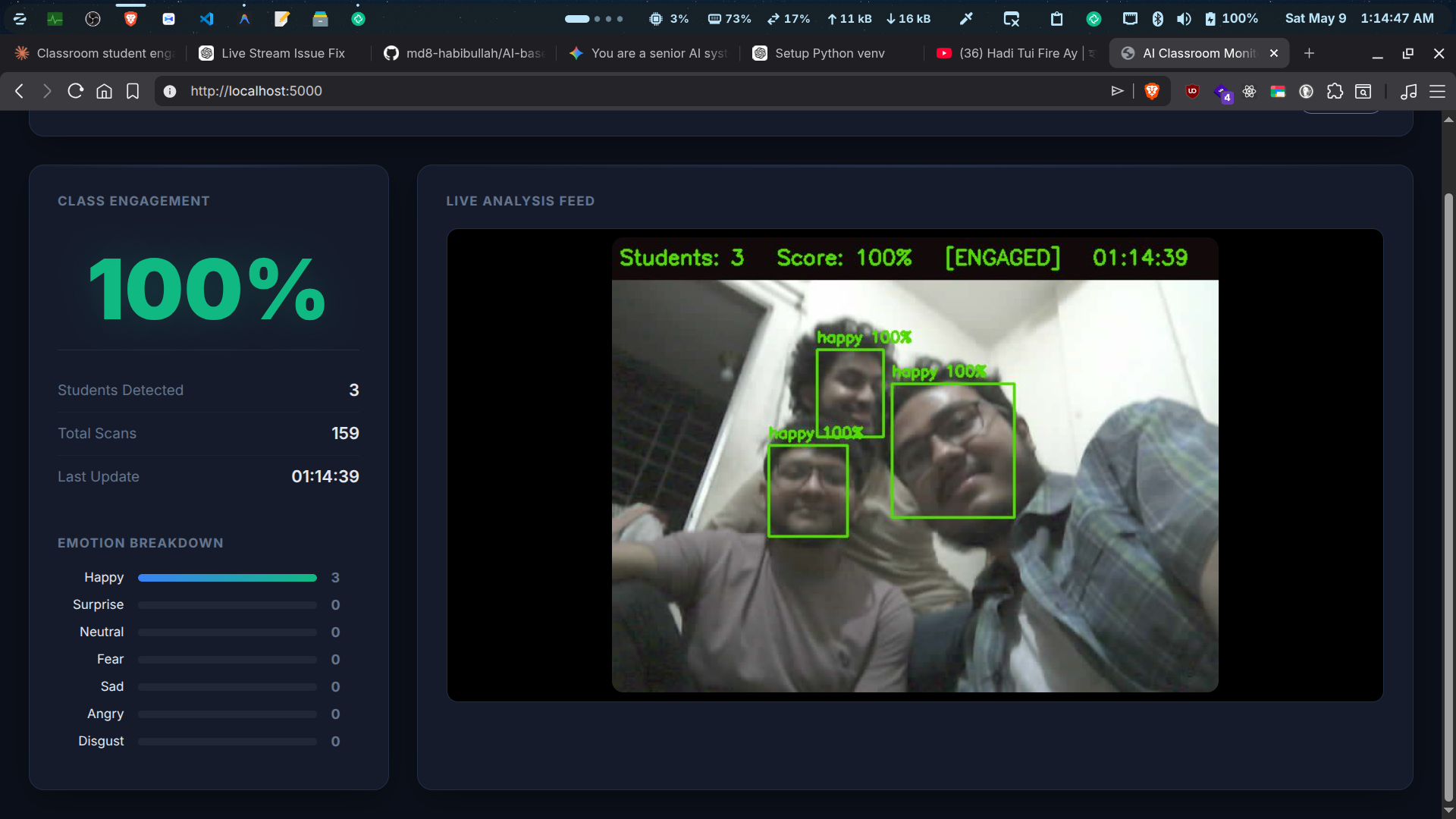
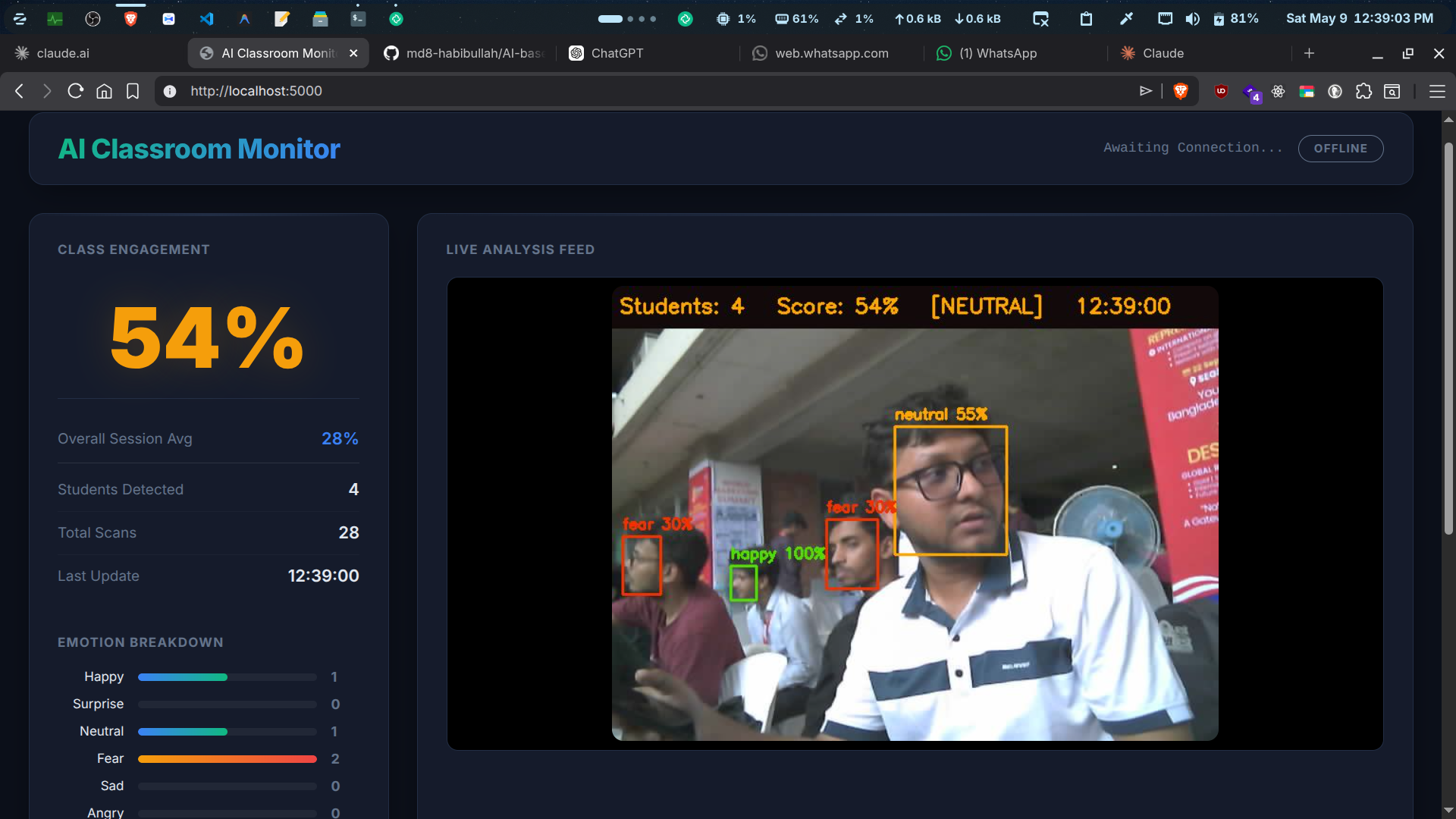
An AI-powered (Artificial Intelligence) and IoT-based (Internet of Things) system designed to monitor and analyze student engagement in a classroom setting in real-time. This project uses edge hardware (ESP32-CAM) to capture video frames, a Python server running DeepFace for facial emotion recognition, and a secondary ESP32 with an OLED (Organic Light-Emitting Diode) screen to provide the teacher with instant feedback on class attentiveness.
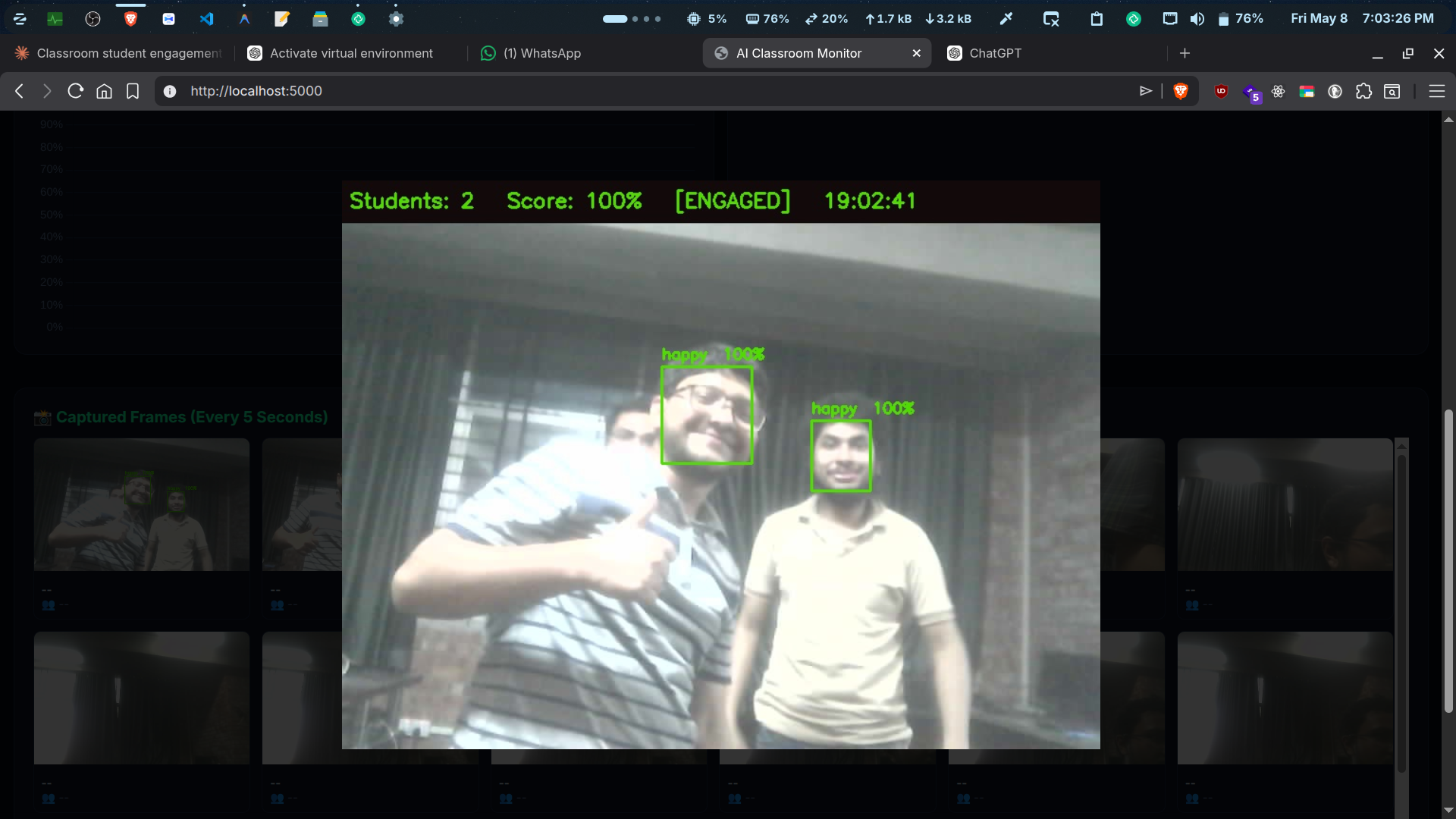
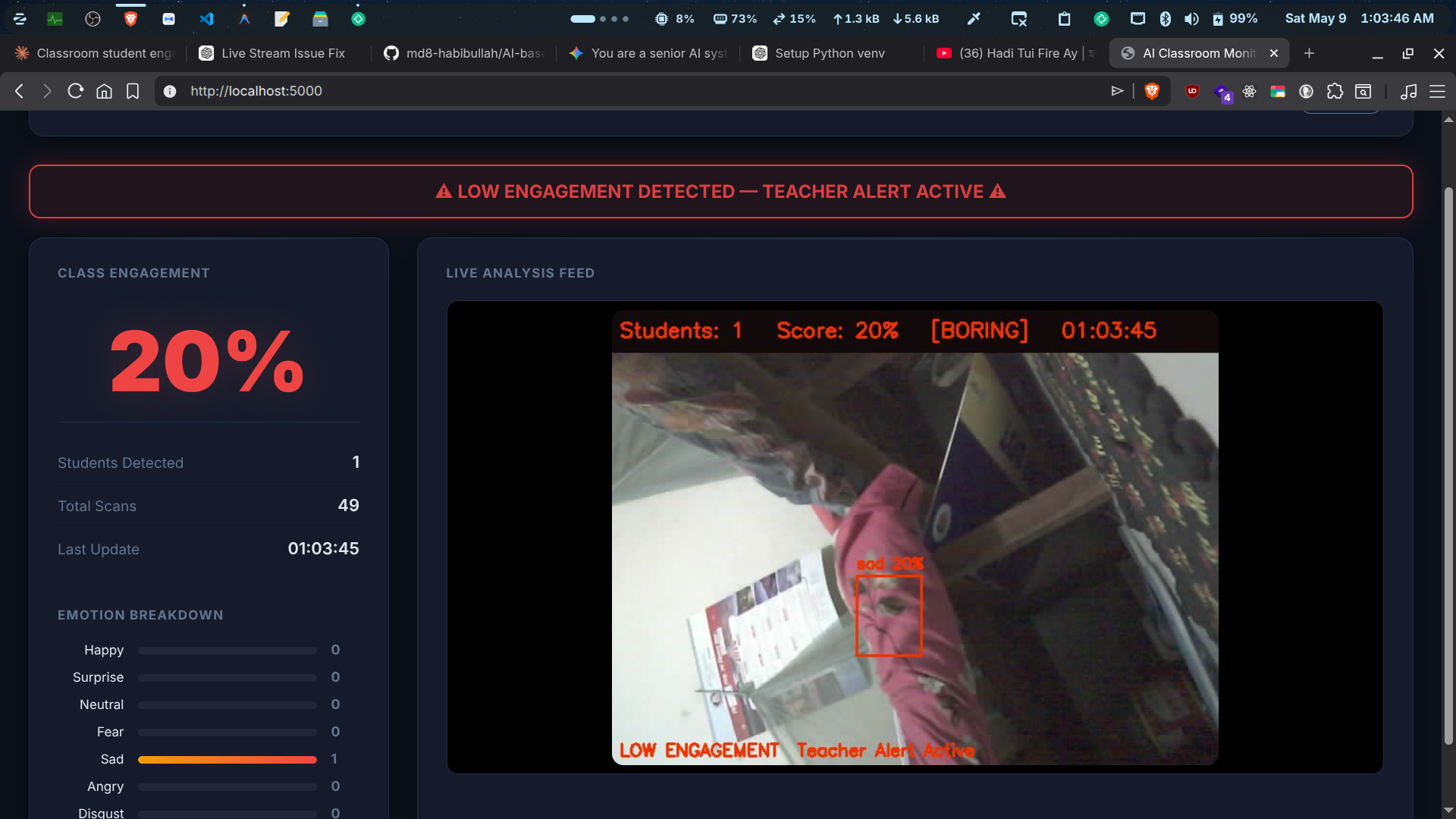
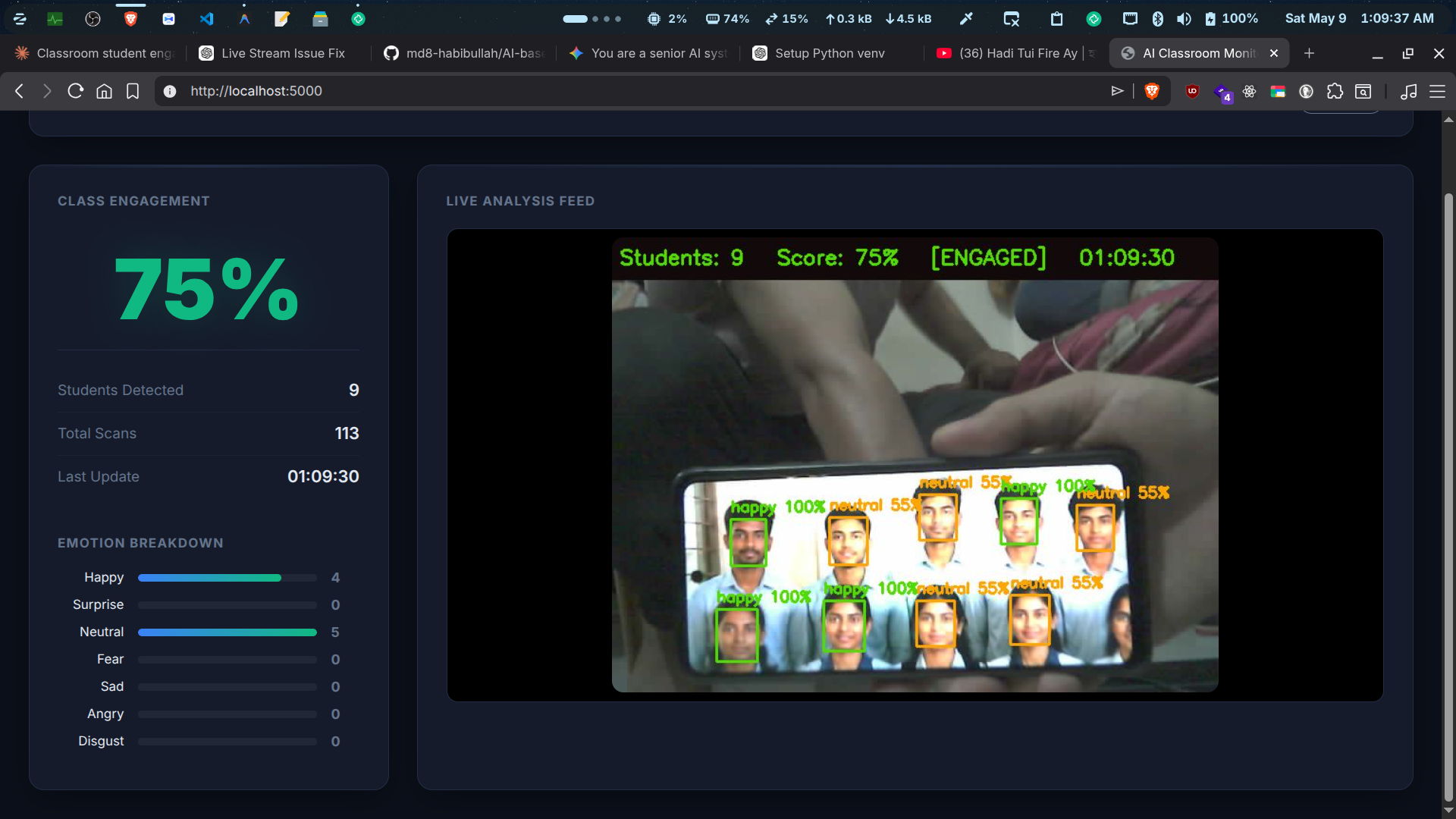
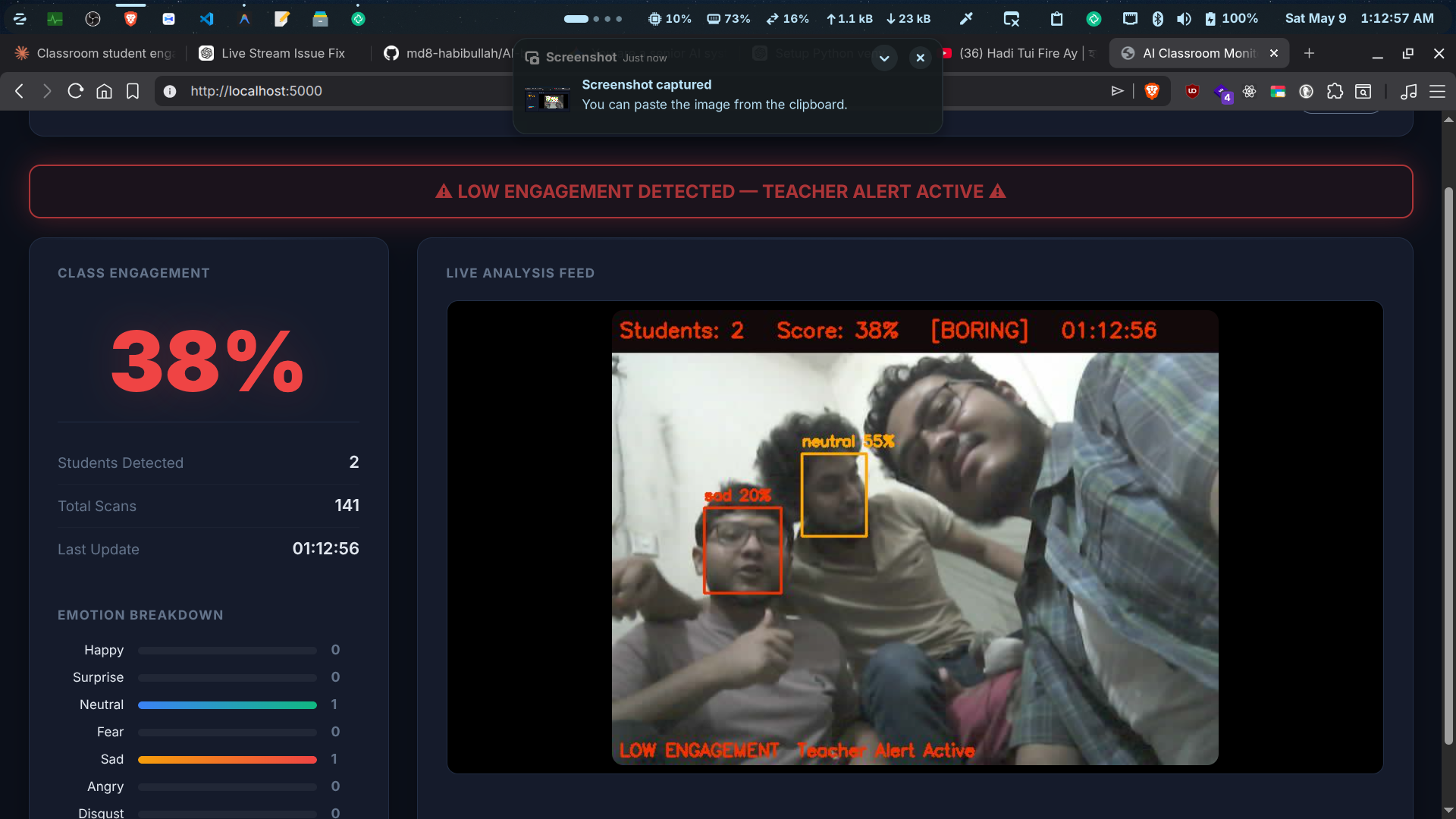
System Screenshots
Features
- Real-Time Emotion Recognition: Utilizes DeepFace and MTCNN (Multi-task Cascaded Convolutional Networks) to detect faces and classify emotions (Happy, Surprise, Neutral, Sad, Angry, Disgust, Fear).
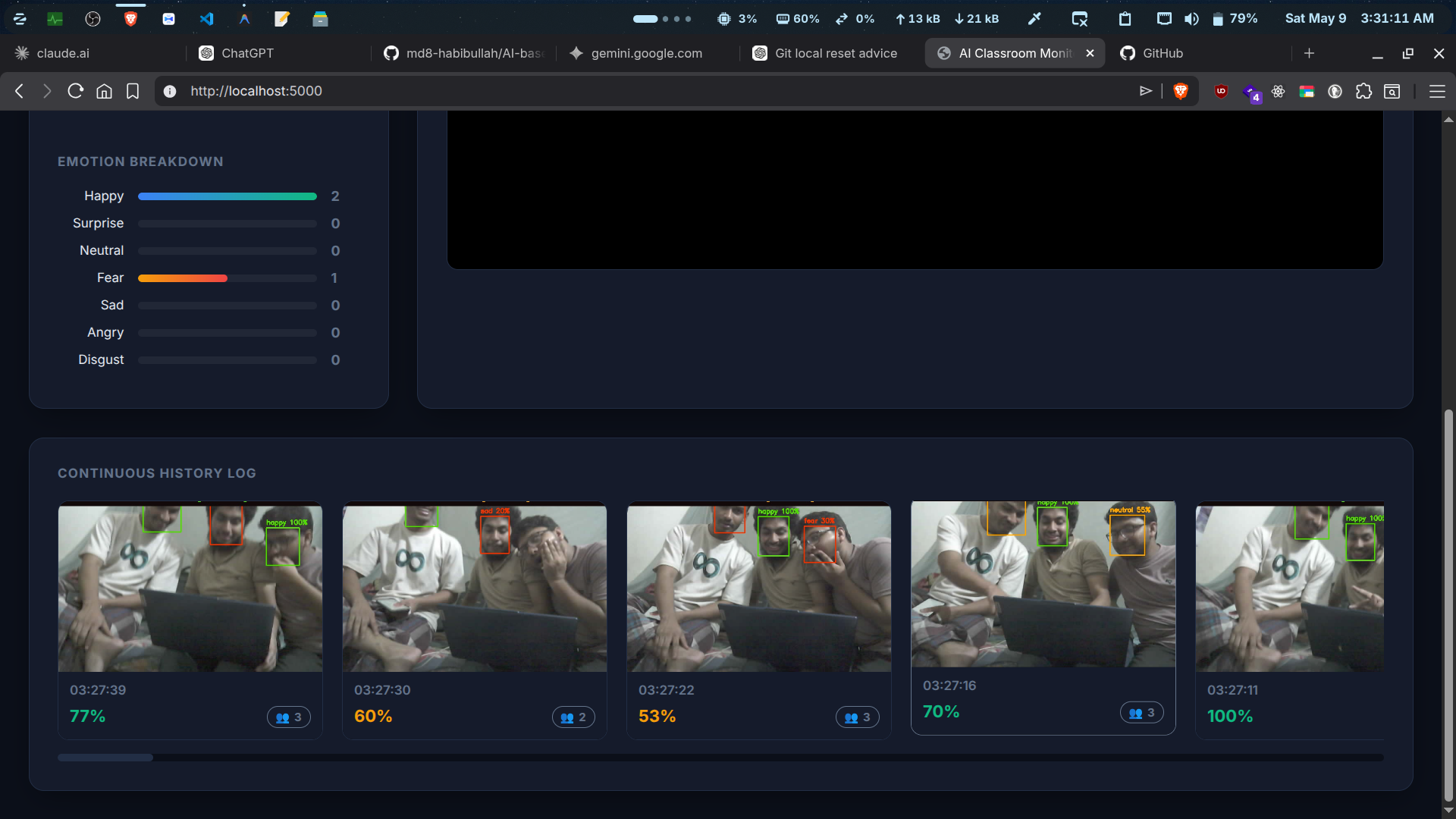
- Live Web Dashboard: A Flask-based HUD (Heads-Up Display) using WebSockets for low-latency live video streaming, engagement scoring, and historical data charting.
- Teacher Alert System: An ESP32 Dev Board equipped with an OLED screen polls the server to display the current class score and visually alerts the teacher if engagement drops below 40%.
- Persistent Analytics: Stores all scan metadata (timestamps, scores, student counts, and emotion JSON data) and captured images locally in an SQLite database.
- Auto-Pruning Storage: Automatically manages disk space by only keeping the last 100 captured frames.
Technology Stack
Software & AI:
- Python: Core backend server language.
- Flask & Flask-SocketIO: WSGI (Web Server Gateway Interface) web framework and WebSockets for real-time dashboard updates.
- DeepFace: Deep learning facial recognition framework.
- MTCNN: Highly accurate neural network backend for detecting face bounding boxes.
- OpenCV (Open Source Computer Vision Library): Used for image decoding, drawing HUD elements, and encoding frames.
- SQLite: Lightweight, serverless C-language database engine.
Hardware:
- ESP32-CAM: Microcontroller with an integrated camera module for capturing the classroom.
- ESP32 Dev Module: Standard microcontroller for polling the API.
- OLED Display (I2C): Connected to the ESP32 Dev Module to show teacher alerts.
Tested Development Environment
This system was built, configured, and tested on the following Linux architecture:
- OS: Zorin OS 18.1 x86_64 (Kernel: 6.17.0-23-generic)
- Python Version: Python 3.12.3 (Strictly isolated in
venv) - Hardware: Lenovo IdeaPad Slim 3 (13th Gen Intel i5-13420H @ 12 threads)
- Memory: 8GB RAM (7631MiB)
- Graphics: Intel Raptor Lake-P [UHD Graphics]
System Architecture
- The ESP32-CAM connects to a local Wi-Fi hotspot and sends a captured JPEG frame via an HTTP (Hypertext Transfer Protocol) POST request to the Python server every 5 seconds.
- The Flask Server receives the frame, queues it, and passes it to the AI worker thread.
- DeepFace analyzes the frame, generating an engagement score based on aggregated facial emotions.
- OpenCV draws bounding boxes and text onto the image, which is then saved to the disk and logged in SQLite.
- The Web Dashboard updates instantly via WebSockets with the annotated frame and new metrics.
- The ESP32 OLED board polls the
/api/scoreendpoint to fetch the latest engagement percentage and updates the physical display on the teacher’s desk.
Setup & Installation
1. Server Environment (Linux / Debian-based)
It is strictly recommended to run this project within a Python Virtual Environment (venv) to prevent dependency conflicts with your system packages. Open your terminal and run the following:
# Clone the repository
git clone [https://github.com/yourusername/ai-classroom-monitor.git](https://github.com/yourusername/ai-classroom-monitor.git)
cd ai-classroom-monitor

# Create the virtual environment
python3 -m venv venv

# Activate the virtual environment
source venv/bin/activate

# Install all required dependencies
pip install -r requirements.txt
2. Network Configuration
The system relies on a local network bridge. Create a mobile hotspot from your laptop/server with the following credentials to allow the ESP32 boards to auto-connect:
- SSID (Service Set Identifier):
Spider - Password:
spider-ghost
3. Hardware Flashing
You will need the Arduino IDE (Integrated Development Environment) to flash the microcontrollers.
- Camera: Open
esp32cam.inoand upload it to the AI Thinker ESP32-CAM board. Detailed instructions are inESP32_CAM_INSTRUCTIONS.md. - OLED Alert Board: Open
esp32_oled.inoand upload it to your standard ESP32 Dev Board. Wire the OLED using the I2C (Inter-Integrated Circuit) pins (SDA to 21, SCL to 22). Detailed instructions are inESP32_OLED_INSTRUCTIONS.md.
Running the System
Ensure your virtual environment is activated (source venv/bin/activate), then start the Python server. Upon the first run, the SQLite database classroom_data.db and the captures directory will automatically generate.
python server.py
Open your web browser and navigate to http://localhost:5000 or http://127.0.0.1:5000 to view the live dashboard. Keep the terminal running to allow continuous processing.
📄 License
This project is open-source and available under the MIT License.